
In the
iTouch warwalking post I was considering trying to gain access to closed networks for innocent purposes such as checking mail, rather than stealing secret passwords from people allowing you free access to their wireless network, but still, I should have thought of the following possibility
Here’s a walk-through :
type the following command into your iTouch Terminal.app (assuming you’ve installed the BSD subsystem) :
tcpdump -v -s 65535 -w log.txt
once you’ve collected enough packets, cancel the command (ctrl c),
AFPd the file from the iTouch to your Mac and open it with
Wireshark (this is the most convenient way to install binaries under Leopard as well as an updated version of X11. For other platforms, or source code,
see here)
Four years ago I had a brief fling with
wardriving. It went only as far as getting
Ethereal to crack the security of our house-network. I simply couldn’t picture myself walking around the neighborhood with my laptop under my arm… However, jogging around with an iPod will attract far less attention.
Starting an iTouch in a network-rich environment you will be asked which network you want to connect to (see for example
this wardriving video). However, if you need more information on the networks, there is a port of the OSX-tool
iStumbler for the iPhone/iTouch :
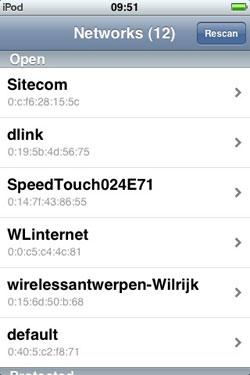
Stumbler (available also from the Install.app under Network). This morning I flipped open my iTouch in a generic street near the University and was surrounded by 12 wireless networks, 6 of them wide open…
One may then ask : what about less innocent wardriving tools such as
Kismet or Ethereal itself? The problem with porting those seems to be that no-one knows whether the iTouch wireless driver can be put into ‘promiscuous mode’ (see for example
this thread).
Once you have collected open networks at your favourite places or have passwords to closed networks, it would be nice if the iTouch would auto-detect these and connect to them without you having to remember the particular name or having to type in username/password combinations. Surprisingly, this is possible thanks to the people at
devicescape.com. Create a free login, then get Devicescape Connect (available under Network) run it and write down the pincode you are given and follow the instructions to complete the installation. You can then edit your Wi-Fi list of desired hotspot or personal networks, together with all login-data. There is a nice
TidBit article describing devicescape in full detail.
If you
are interested in getting thousands of mp3-files on your computer
using only 128 Kb of ROM, read on! Yesterday I made my hands dirty and
with Jan’s help upgraded two 6 Gb colored iMacs (a blue and a
pink one) to potential servers for our home-network having a 80 Gb resp.
a 120 Gb hard disk. If you do the installation yourself such an upgrade
costs you roughly 1 Euro/Gigabyte which seems to me like a good
investment. Clearly, you need to know how to do this and be less
hardware-phobic than I am. Fortunately, the first problem is easily
solved. There is plenty of good advice on the net : for the colored
iMacs we used the
upgrade an iMac-page of MacWorld. For possible
later use, there is also a page for replacing the hard disk in an
old iBook
(which seems already more challenging) and in a
flat screen iMac (which seems to be impossible
without proper tools). Anyway, we followed the page and in no time
replaced the hard disks (along the way we made all possible mistakes
like not connecting the new hard disk and then being surprised that the
Disk Utility cannot find it or not putting back the RAM-chips and
panicking when the normal start-up chime was replaced by an aggressive
beep). An unexpected pleasant surprise was that the blue iMac, which I
thought to be dead, revived when we replaced the hard disk.
Back home, I dumped a good part of our CD-collection on the blue
iMac (1440 songs, good for 4.3 days of music and taking up 7.11 Gb of
the vast 120 Gb hard disk) to test the iTunes Central hack
explained by Alan Graham in his six
great tips for homemade dot mac servers. Would I manage to get the
entire collection on my old iBook which had only (after installing all
this WarWalking-software) 800 Mb of free disk space? Here is what
I did :
1. On the iBook (or any machine you want to
play this trick on) go to your Home/Music/iTunes-folder and drag
the two files and one directory it contains to the Trash. Do the
same for the two files com.apple.iTunes.eq.plist and
com.apple.iTunes.plist which are in the
Home/Library/Preferences-folder.
2. On the
iBook, use the Finder/Network-icon to connect to the server
(iMacServer in my case) and browse to the iTunes-folder where you placed
all the music (still, on the iBook in the Finder-window opened when you
connect to iMacServer). Make an Alias of the two files and the
directory in it (click on one of them once, go to the
File-submenu of the Finder and choose Make Alias) which
results in three new entries in the iTunes directory : iTunes 4 Music
Library alias, iTunes 4 Music Library.xml alias and iTunes
4 Music Library alias. Drag these 3 aliases to the
Home/Music/iTunes-folder on the iBook and rename them by removing
the alias-addendum.
3. In the Finder-window on
the iBook corresponding to the iMacServer browse to the
Home/Library/Preferences-folder and drag the two files
com.apple.iTunes.eq.plist and com.apple.iTunes.plist to
the Home/Library/Preferences-folder of the iBook. Launch
iTunes and it will give you access to the whole iTunes-collection
of iMacServer! In all, the three aliases and the 2 copied files take up
128 Kb…
What then is all this WarWalking, WarDriving,
WarChalking and so on? In particular, why the aggressive
War-word in them ? From what I learned, the historical origin of
these terms comes from the 1983 movie “War Games” in which a
kid sets up his modem to dial numbers until it finds a computer to hack
leading inevitably to the US-army in total panic. This hobby created the
phrase WarDialing. In analogy, a person driving around in a car
with a laptop in search for wireless networks is said to be
WarDriving, if (s)he is on foot it is clearly WarWalking.
Because of the aggressive nature of the War-subword some people have
re-engineered an explanation :
WAR = Wireless
Access Reconnaissance
so let us hope this acronym
will catch on. Now then, what is WarChalking ? It was invented by
Matt Jones and the idea is that a WarWalker should write a symbol in
chalk on the wall nearest to the discovered Access Point describing its
nature (see picture on the left) : the first sign depicts an open
node, the next a closed one and the last one is a node with
WEP-protection (btw. WEP=Wired Equivalent Privacy). A lot
of people seem to take this fairly serious, there is even a webpage
warchalking.org devoted to it on which you can
find a lot more information. And as warchalking was originally British,
there had to be also an
American site containing among other things a not
that active forum. Further, the
unofficial HOW-TO of WarDriving may be
interesting. To me it all sounds as an excuse to buy a
GPS-receiver and a
laptop…
This time we turn to
Ethereal, ’sniffing the glue that holds the
Internet together’. Here is the description they give : “Ethereal is a
free network protocol analyzer for Unix and Windows. It allows you to
examine data from a live network or from a capture file on disk. You can
interactively browse the capture data, viewing summary and detail
information for each packet. Ethereal has several powerful features,
including a rich display filter language and the ability to view the
reconstructed stream of a TCP session”. Whereas OSX is not included it
is possible to get Ethereal running under OSX but it
requires some work. To begin you need to have the XTools
installed (the extra CD shipped with 10.3) (btw. you probably needed
already the XTools to get Kismet up and running). Secondly, you
need to have X11 in Applications/Utilities. This is not a
standard option if you install 10.3 but with a custom install you can
install X11. If you haven’t done this, no problem, you can download X11
from the
apple-site (43Mb! download). And finally you need
to have Fink installed (see a previous
post). If you are set, open the Terminal and type
sudo fink install ethereal-ssl
Fink will tell you that it needs some additional packages to
install (12 in my case) and you agree to this with typing Y. Get
yourself a coffee and a book or newspaper because the compilation
process takes quite a while (in my case it took over one hour!). When it
finally stops you hope to be done, so start up X11 and type
sudo /sw/bin/ethereal
and it
works! If you want to begin sniffing you have to click on
Capture/Start and a pop-up window appears. Specify en1 as
Interface and click on Ok. If after some time you press
Stop all the captured packages appear in the main window and you
can start playing. We will see another time what exactly you can do with
all this information…
The previous time that I
tried to install Ethereal (on an iBook) I got an error message :
dyld: /sw/bin/ethereal can’t open library: /sw/lib/libdl.0.dylib (No
such file or directory, errno = 2). Fortunately a simple Google gave
me the following
work-around. So if you get into problems that will
probably solve them. I also needed to type xhost in X11 to
allow su to use my window. But, none of these problems appeared right
now so maybe they updated the package.
Moreover,
Ethereal is very well documented both with an
online manual-page and a
User’s guide (which you can also download as
PDF-file : 454 pages! but only the first 100 or so are worth
printing).