Archive for the ‘markdown’ tag
command line interface
Way
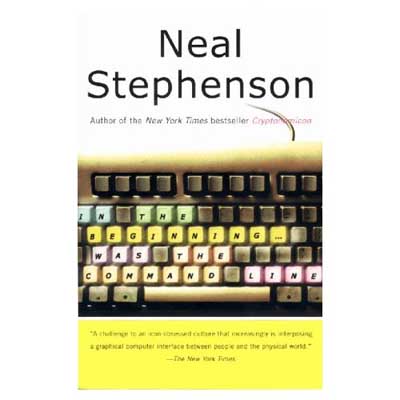
back in 1999 I read Neal Stephenson’s pamphlet In the Beginning ! Was the Command Line and
decided I should and would have Linux running on my clamshell iBook.
Needless to say this was (a) a foolish idea and (b) not entirely trivial
in those dark OS 9-days. Still, I somehow managed with the help op PPC Linux and was
proudly wearing their T-shirt (at least for a couple of weeks in early
2000). Fortunately, as a brief OS X
history recalls, OS X was released March 24, 2001 and put an end to
my Linux-folly and I’m pretty certain even Neal Stephenson is on Mac OSX
these days.
Needless to say I couldn’t resist installing the
Wordpress CLI-theme the moment I spotted it! A command line
interface to your blog! awesome! If you want to have a go at the
original version, take a look at Rod McFarland’s blog.
Just type ‘ls’ to the prompt and you’ll be hooked. Or you can have a
look at the command line interface of NeverEndingBooks by going to the
left sidebar and clicking CLI under the ‘Command Line Version’ header
(don’t be afraid you can always come back by clicking on the
GUI-interface over there). My design is black on a light-gray background
and is no where near as cool as the original theme but it was the only
quick way around some limitations of the CLI-theme.
The
CLI-theme operates as a front-end via a small interpreter which draws
the information directly from the WordPress-database. As a result you
loose the effect of all post-processing by plugins such as Markdown and LatexRender two of
the plugins I use most! I could still live with the idea that pure LaTeX
was served to a CLI-environment between tex-tags, but surely I didn’t
want to loose all my links! The quick (and extremely dirty) way around
it was to resubmit the relevant part of the HTML-source files of the
GUI-frontend posts to the WP-database. And to serve the same LaTeX-gifs
to the GUI and CLI interface I needed the backgound to be rather light
gray (taking #BDBDBD gray would have been much nicer wrt. the cool
rasterized grayed-images but then some of the more recent LaTeX-gifs
became partially unreadable). Oh, and in the process I had to update the
permalink structure, thereby wrecking allmost all internal
reference-links (but I’ll sort them out soon, I promise).
So, a
lot of work for a rather meagre result. What do I like about the
CLI-interface (apart from old time nostalgia)? I really like the
searching facility. Just type ‘search yourword’ to the prompt and it
will give you all posts containing that word (much quicker than in the
GUI-interface) and if you remember at least one word from a post-title,
feeding it to the prompt will give you the entire post (or a list of
posts if the same word appears in different posts). Try out typing
‘Perelman’ to see what I mean. Besides, bots don’t seem to know what to
do with the CLI-interface so for the few days I had this theme as my
default theme I was alone on NeverEndingBooks mast of the time (which
helped a lot having to change that many posts). So, whenever I want to
have the site to myself I’ll just change the default theme from now
on.
Still, I did put back the old GUI as default because the
CLI-theme still has a few drawbacks. Such as, it is impossible to write
a sizable comment (not that too many of you do this, but anyway) and
some other quirks. Still Rod McFarland is working on a version 2 (and
even set up a google-group for
those who want to code along, and maybe I’ll join the effort) which
promises a great improvement and I’m rather confident that by version
3.14 it will be in a state that I’ll have the CLI-interface as my
default. Until then, I’ll keep up the two front-ends and allow you to
toggle as you like (your browser will remember your preference).
I realize most of you are youngsters and not of my cpu2
generation so have a hard time imagining how exiting a command line
prompt is. Fortunately, Neal Stephenson has made the full text of “In
the beginning ! was the command line” available as a
free download. Print it out and enjoy!
latexrender plugin for wordpress under tiger
Promises and pie-crusts are made to be broken, a wiser man once
said. Still, promises have a much longer life-span and sometimes their
real content becomes redundant over time.
A year ago, I
promised
to document how I got the
LaTeXRender Plugin for WordPress working under OS X. The procedure
consisted of some trial-and-error operations, installing non-standard
versions of software and hardcoding certain directories throughout
certain files…
Not something I was looking forward
to when I decided to upgrade this WordPress blog but,
surprisingly, things went pretty smoothly this time (Mac-technology
has improved a lot). So, please don’t worry too much about this
post and follow the (late) instructions below.
First
things first : I will assume you have the ‘generic’ LaTeX
running under Tiger (10.4),that is, use the i-Installer to download BOTH
LaTeX and Imagemagick! Further, in order to get WordPress up and
running, have the standard
MySQL 4.0 package installed for 10.3 (not version
4.1…) and don’t use the generic Mac-PHP version, but
instead download Marc
Liyanage’s PHP5 package which has plenty of additional
packages installed (notably, GDlib and MCRYPT which comes in handy if
you want to fight spam-comments using BotCheck).
\r
\n
Download wp-
latexrender.zip and follow the instructions given to the letter
(there is one undocumented extra directory you have to fill in at the
start of the latexrender-plugin.php file). There is
just one additional thing to do. Find in the
class.latexrender.php file the line starting
with
// convert dvi file to postscript using dvips
and include the following lines just before it
:
// begin of workaround // extending the PATH
environmental variable Soldpath =
getenv(“PATH”); Swhere_imagemagick_is =
“/usr/local/bin”; if (Soldpath) { Swhere_imagemagick_is .=
“:Soldpath”;} putenv(“PATH=Swhere_imagemagick_is”); //
end of workaround
activate the plugin and it
should work! Still, there are three things you may want to change. In
the latex.php file uncomment the indicated lines as
you will be using htmlArea to input your posts. In addition, if you
have the MarkDown-plugin enabled, it is best to append additional
lines such as
Slatex_formula = str_replace(“_”,”_”,Slatex_formula); Slatex_formula = str_replace(“_”,”_”,Slatex_formula);
(
between the first ” ” should be the beginning and end
em-tag respectively) or underscores will be interpreted as em-tags.
If you run into additional similar problems, the procedure is to
comment-out the line
unlink(Sthis->_tmp_dir.”/”.Sthis->_tmp_filename.”.tex”);
near the end of class.latexrender.php , look in the
tmp directory for the TeX-file, detect the problem and add similar
lines to the ones above to solve it. Another useful thing to do
is to add TeX-packages in the class.latexrender.php file. My own
version has the following predefined symbols and loaded
packages
function wrap_formula(Slatex_formula) {
Sstring =
“\\documentclass[“.Sthis->_font_size.”pt]{“.Sthis->_latexclass
.”}\\n”; Sstring .=
“\\usepackage[latin1]{inputenc}\\n”; Sstring .=
“\\usepackage{amsmath}\\n”; Sstring .=
“\\usepackage{amsfonts}\\n”; Sstring .=
“\\usepackage{amssymb}\\n”; Sstring .=
“\\usepackage{xy}\\n”; Sstring .=
“\\xyoption{all}\\n”; Sstring .=
“\\\\newcommand{\\vtx}[1]{*+[o][F-]{Scriptscriptstyle
#1}}\\n”; Sstring .= “\\\\newcommand{\\mathbb{C}c}{\\Bbbk}\\n”;
Sstring .= “\\\\newcommand{\\mathbb{C}}{\\mathbb{C}}\\n”; Sstring .=
“\\\\newcommand{\\mathbb{Q}}{\\mathbb{Q}}\\n”; Sstring .=
“\\\\newcommand{\\mathbb{Z}}{\\mathbb{Z}}\\n”; Sstring .=
“\\\\newcommand{\\mathbb{N}}{\\mathbb{N}}\\n”; Sstring .=
“\\\\newcommand{\\mathbf}[1]{{\\\\text{\\em \\usefont{OT1}{cmtt}{m}{n}
#1}}}\\n”; Sstring .= “\\pagestyle{empty}\\n”; Sstring
.= “\\begin{document}\\n”; Sstring .=
“S”.Slatex_formula.”S\\n”; Sstring .=
“\\end{document}\\n”; return Sstring; }
which, among other things, allow all commenters to add
quiver-pictures using xymatrix and vtx to depict vertices. Oh yes, you
can allow comments to include LaTeX-code by uncommenting the
line
// add_filter(‘comment_text’, ‘addlatex’);
in the latexrender-plugin.php
file (but before you do make sure you have spam under control, such as
with BotCheck mentioned above). That’s all for now. If you want
to use TeX in a comment, make sure to put the code between tags [ tex
] and [ /tex ] (omitting the extra spaces). If you want me to add
other LaTeX-packages, leave a comment.
markLaTeXdown
Clearly,
an extended version of Markdown
including LaTeX-commands would be useful for mathematicians and surely
I’m not the first to think about this. In fact, I found a somewhat
pompous text New adventures
if hifi text by someone claiming to have done precisely that (though
he doesn’t give much details nor post a version of his altered program).
Still, it is pretty clear how to convert a _Markdown+LaTeX_
textfile to plain LaTeX (at least for regex-lovers
). Modify the _Markdown.pl_ script so that the Markdown markup is
translated not to HTML-tags but to LaTeX-commands.
More
interesting material can be found in a thread on _Markdown and
Mathematics_ starting with this post. In it, they search for a good way to include
LaTeX-mathematical commands in a MarkDown text. In fact, this is part of
a more general quest for a good _escape character_ in Markdown to
create _Markdown plus something_ versions. They opt for
{{ and }} rather than the usual
$ signs.
I think the alternatives [
tex ] and [ /tex ] are slightly better because
then you could feed the text to a functional WordPress installation with the
LaTeXRender plugin installed and copy the relevant part from the HTML-source of
the resulting post to get a HTML-version of the mathematical text with
all LaTeX-code converted to pictures. Clearly, typing the suggested tags
is somewhat cumbersome so I would type them using the
{{ and }} proposal (one
{ is not enough because a lot a LaTeX code uses single
curly brackets) and then do a global replace to get the
LaTeXRender-tags.
Even more interesting would be to have a
version of the html2txt.py script for LaTeX, that is,
converting a LaTeX-file to Markdown + LaTeXcode which would give an easy
way to convert your existing papers to HTML if you feed the LaTeXRender
plugin with all the required newcommands and packages.
markdown2use
Here some
possible uses of Markdown and the
HumaneText Service.
As an example, let us take the
noncommutative geometry & algebra page maintained by Paul Smith.
If you copy the source of this page to BBEdit and use the
html2txt.py script in the #! menu (see
this post)
you get a nicely readable Markdown-file which strips the page of all its
layout and which is easy to modify, for example to include author and
URL at the start, remove some additional empty lines, make relative URLs
absolute and so on.
Applying the Markdown.pl
script to it one gets a nice RetroCool version
of the page. For starters, this gives a way to make your own collection
of websites you like in a uniform layout (of course, later on you can
add your own CSS to them).
More important is that the
Markdown-version (see here for
the text-file) is extremely readable and allows to _mine_ all
links easily (as you can see all links contained in the HTML-page are
referenced together at the end of the file). So, this is a quick way to
collect homepage- and email-links from link-pages.
Btw. there
are different ways to include links in a markdown text, for example I
like to write it immediately after the reference, so doing a Markdown.pl
followed by a html2txt.py doesn’t have to reproduce your original file
and fortunately you will always end up with a file having all links
referenced at the end. So, this procedure allows you to have uniformity
in a collection of markdown-files.
Equally important for me (for
later use in an intelligent database using DevonThink ) is that the Markdown file is the best way to safe the
HTML file in the database (as a RTF file) while maintaining readability
(which is important when DevonThink returns snippets of
information).
markdown
The nerd
implimentation of GTD is based on plain text-files, or more
precisely
- all lists in text files, kept in directory
“~/Documents/txt”
– all documents maintained in Markdown for easy
HTML conversion
I’ve been writing HTML-code since the times
that the best browser around was something called NCSA Mosaic so I’ve never paid too much attention to
Markdown
before. Here is its main purpose
Markdown is a
text-to-HTML conversion tool for web writers. Markdown allows you to
write using an easy-to-read, easy-to-write plain text format, then
convert it to structurally valid XHTML (or >HTML). Thus, Markdown is
two things: (1) a plain text formatting syntax; and (2) a software tool,
written in Perl, that converts the plain text formatting to
HTML.
An example of Markdown-code followed by its
HTML-output can be seen at the BlueCloth website and I have
to agree that the Markdown text is very legible. I’ve been playing
around with Markdown for a couple of days now (in fact this post is
written in Markdown as WordPress has a Markdown-plugin) and have found a
few uses for it (more on this another time). Essential sites to visit if
you want to learn some Markdown are : its basic
syntax and in the rare cases that this doesn’t do what you want to
do there is also a full
syntax page.
If you want to use Markdown to write your
HTML-pages you need to be able to convert Markdown to HTML (and
conversely although the uses for this are not immediately clear, but
there are plenty of good reasons!). That’s what the
Markdown.pl Perl-script does for you (one way) and the
Python-script html2text.py (to be found here) (the other
way).
To get them working using BBedit
all you have to do is to put them in the _BBEdit Support/Unix
Support/Unix Filters_ directory (to be found in the BBEdit-folder in
_/Applications_). Then, if you have written a Markdown-text, do a
_Select All_ go to the !# menu and look for
Markdown.pl under _Unix Filters_ and voila, you have valid XHTML
(the other direction is similar).
This is a bit of work and one
would like to do both operations in nearly all Applications using the
_Services Menu_ (in fact, until a few weeks ago I had no clue
that there was something as useful as this menu hidden under the
program-name-menu of any Cocoa-program!). This is best done using HumaneText.service. The
installation is really as siimple as they say on this page (although it
took me a couple of trials before it worked, and I use the Services-menu
rather than the keystroke-shortcuts).
HumaneText works perfectly with TextEdit,
SubEthaEdit and (probably more important to mathematicians) TeXShop and
iTeXMac (the two most common front-ends for (La)TeX under OS X). A
noteworthy exception is BBEdit (hence the above laborious work-around).
Sometimes there are problems with punctuation in the conversion but you
can get around this using SmartyPants.